O1
Setup
- Power on the olixBot™ O1
- Connect the olixBot™ O1 via Ethernet to a Network System to control the O1
- Connect your Host System to the same Network with ROS_DOMAIN_ID = 0
- Username: firefly Password: one
- Default ROS2 version is Humble and your host should be with Ubuntu 22.04
- Following topics should now be visible on your host system:
olive@olive:~$ ros2 topic list
/olive/olixO1/id001/head_cmd
/olive/olixO1/id001/head_state
/olive/olixO1/id001/image/camera_info
/olive/olixO1/id001/image/compressed
ROS Topics and Parameters
Topics
Each topic has in the beginning /olive/olixO1/id00X…
| Topic Name | Message Type | Description |
|---|---|---|
| /head_cmd | sensor_msgs/msg/JointState | Sends a Head Command |
| /head_state | sensor_msgs/msg/JointState | Shows Head Status (Pose, Vel, …) |
| /image/camera_info | sensor_msgs/msg/CameraInfo | Shows camera infos like Camera Matrix, etc. |
| /image/compressed | sensor_msgs/msg/CompressedImage | Shows the Compressed Camera Image |
Services
olive-o1.service: The motor controllers
olive-vision.service: The camera interface
olive-hmd.service: The HMD interface
RQT
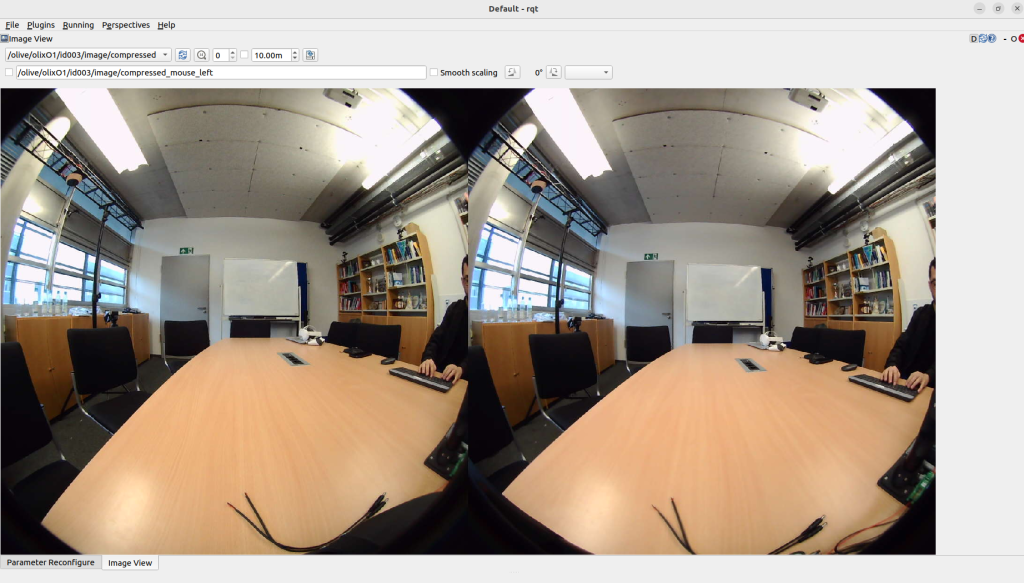
You can view the image from rqt image viewer
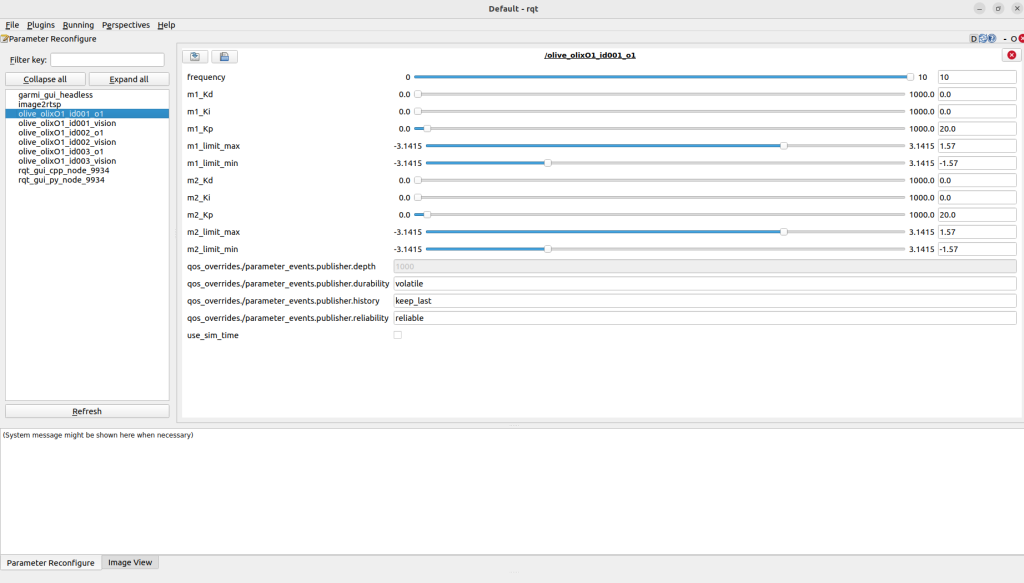
Parameters
Quick Start
Move O1 via CLI
The head can be moved by publishing to the topic /olive/olixO1/id001/head_cmd.
Set the position field of the sensor_msgs/msg/JointState message to the desired joint positions in radians, where the first entry corresponds to yaw and the second entry to pitch.
ros2 topic pub /olive/olixO1/id001/head_cmd sensor_msgs/msg/JointState "header:
  stamp:
    sec: 0
    nanosec: 0
  frame_id: ''
name: []
position: [1.57, 0.0]
velocity: []
effort: []"
The example above moved the head by 90 degree on the yaw axis.
Move O1 via HMD
To move the Head via HMD follow these steps:
- Power on the HMD
- Connect the HMD to same network
- Open the OliveVR4 app
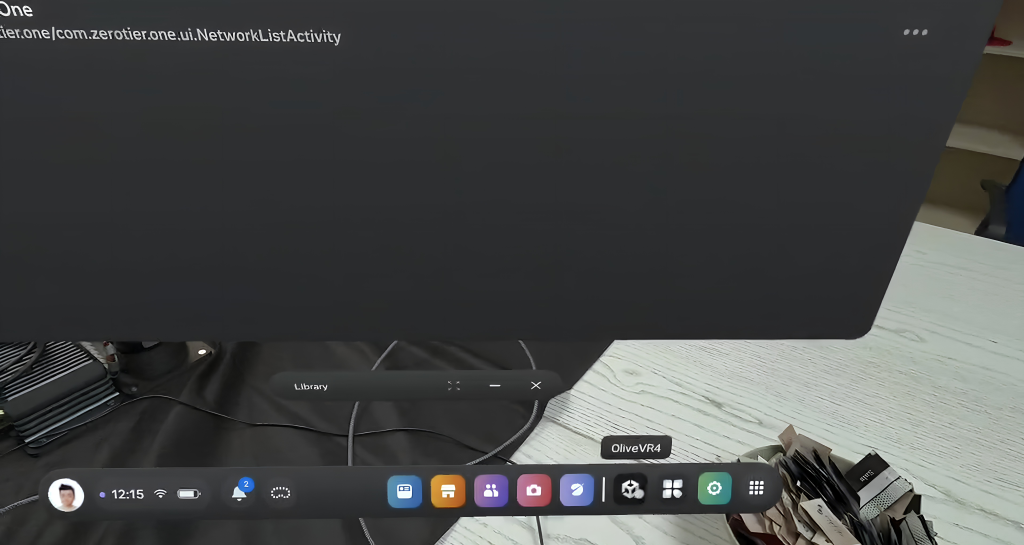
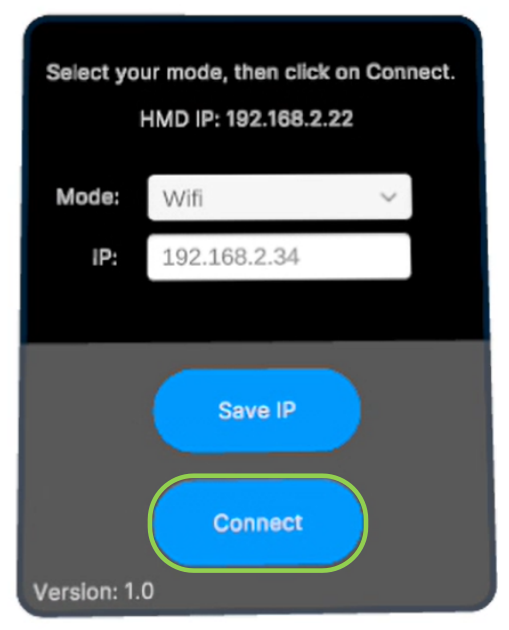
4. There should be screen like below
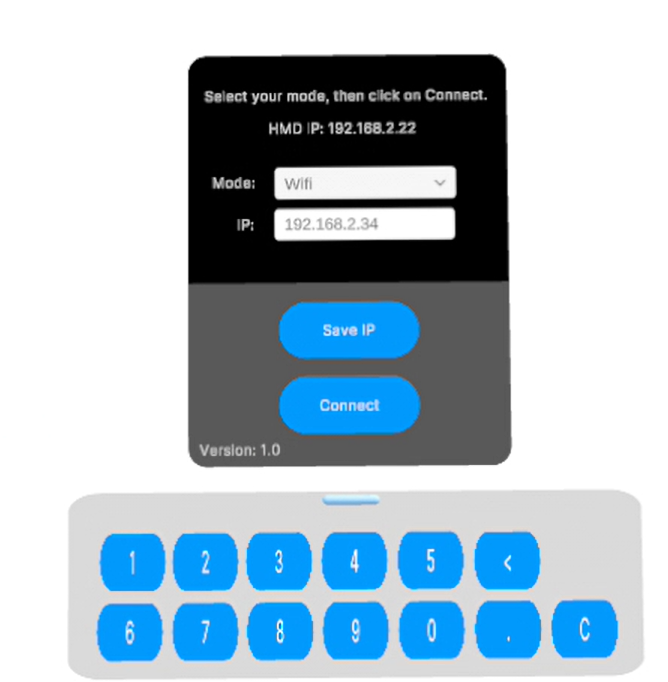
5. Under Mode, you can choose between 5G and WiFi
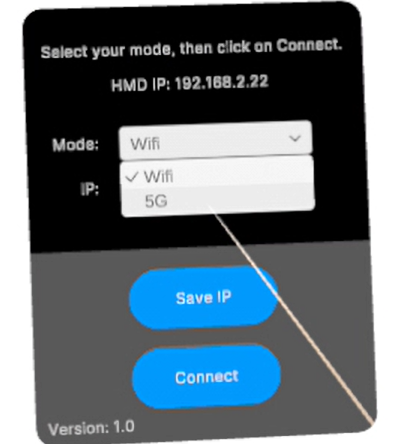
6. At the top, you can see the HMD IP address (e.g. 192.168.2.22). This must be added into the O1 Computer under /home/firefly/workspace/olive_hmd_interface/src/garmi_gui/config in the station_WIFI_ip field (if WiFi mode is selected).
station_5G_ip: 192.168.2.5
station_WIFI_ip: 192.168.2.22
update_rate: 200
station_mode: WIFI
id: 1
world_alignment:
  yaw_deg: -53.099998474121094
  offset_x: -0.15000000596046448
  offset_y: 0.070000000298023224
  offset_z: 0.92000001668930054
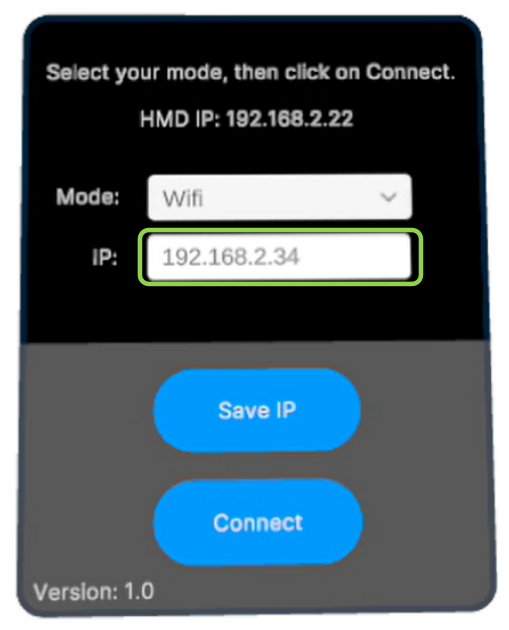
7. In the IP Field set the IP of O1
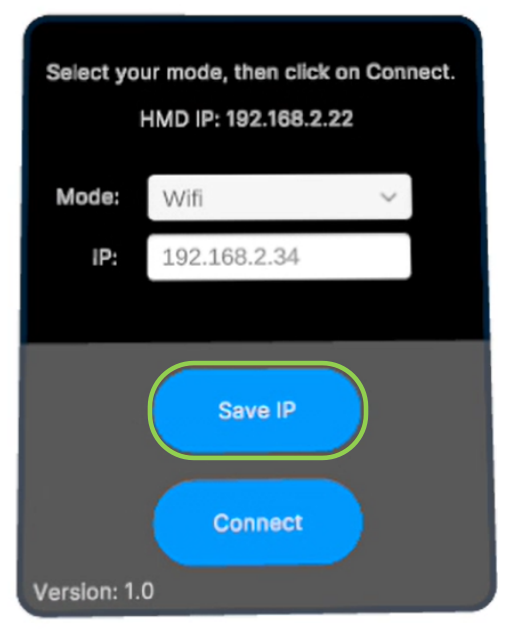
8. Save the IP Address
9. Run Connect
Zeroing the O1 with the HMD
To set the current HMD position as the zero position for the O1, press the R1 button on the controller.