MacOS
Parallels Desktop is a powerful virtualization software that allows users to run Windows, Linux, and other operating systems seamlessly alongside macOS on a Mac computer. It’s particularly popular among professionals and developers who need access to multiple platforms without rebooting. With features like Coherence Mode, users can run Windows applications as if they were native Mac apps, making the workflow smoother and more integrated. Parallels also supports features like drag-and-drop between systems, shared folders, and hardware acceleration, ensuring high performance and ease of use. Whether you’re testing software, running legacy applications, or gaming, Parallels Desktop offers a flexible and efficient solution for cross-platform computing.
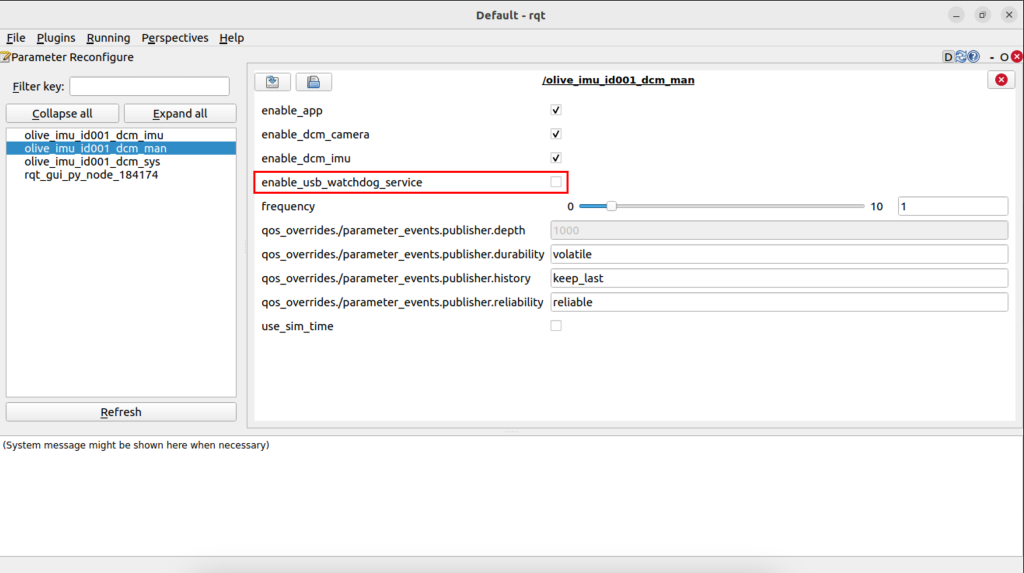
Step 1: Disable the USB watchdog in the Olive Component
First make sure using a normal Linux computer you have disabled the usb_watchdog_service from parameters. You can get more infromation regarding ROS 2 params and RQT here:
https://olive-robotics.com/docs2/ros-rqt-interface/#rqt-dynamic-reconfigure
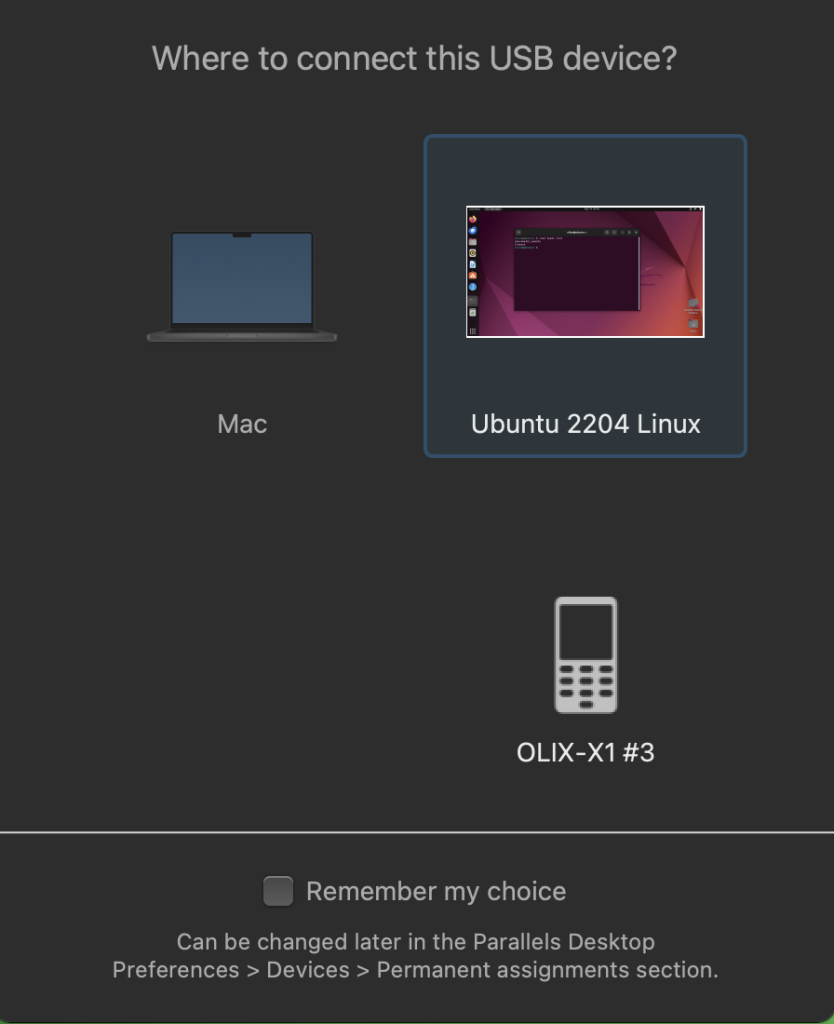
Step 2: Connect to Parallel Desktop
When you connect Olive Component, select the guest operating system. Here select the virtual Linux (Ubuntu 22.04).
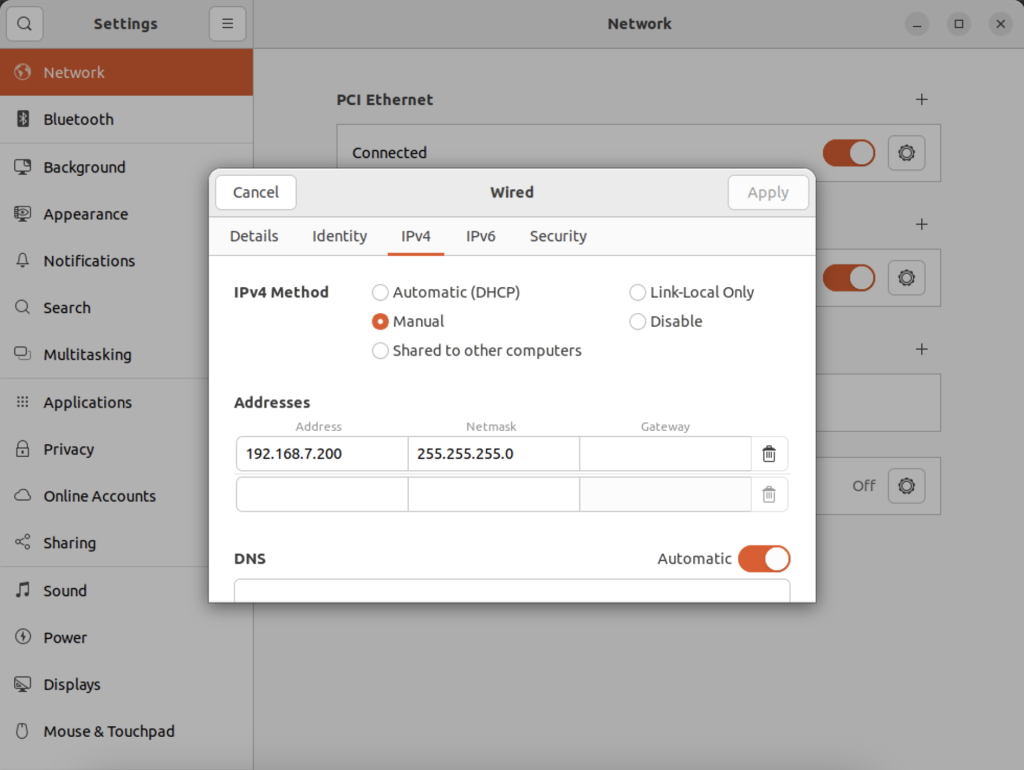
Step 3: Give a static IP to your device
Make sure the computer has the default staic ip address (192.168.7.200).
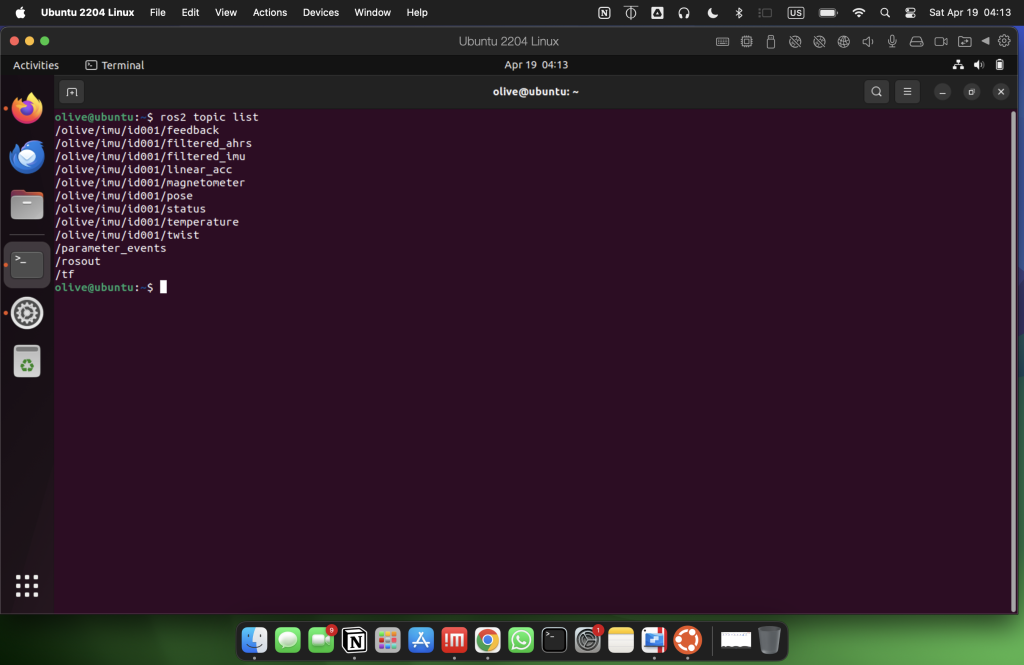
Step 4: Then you can see the topics using ROS 2 commands
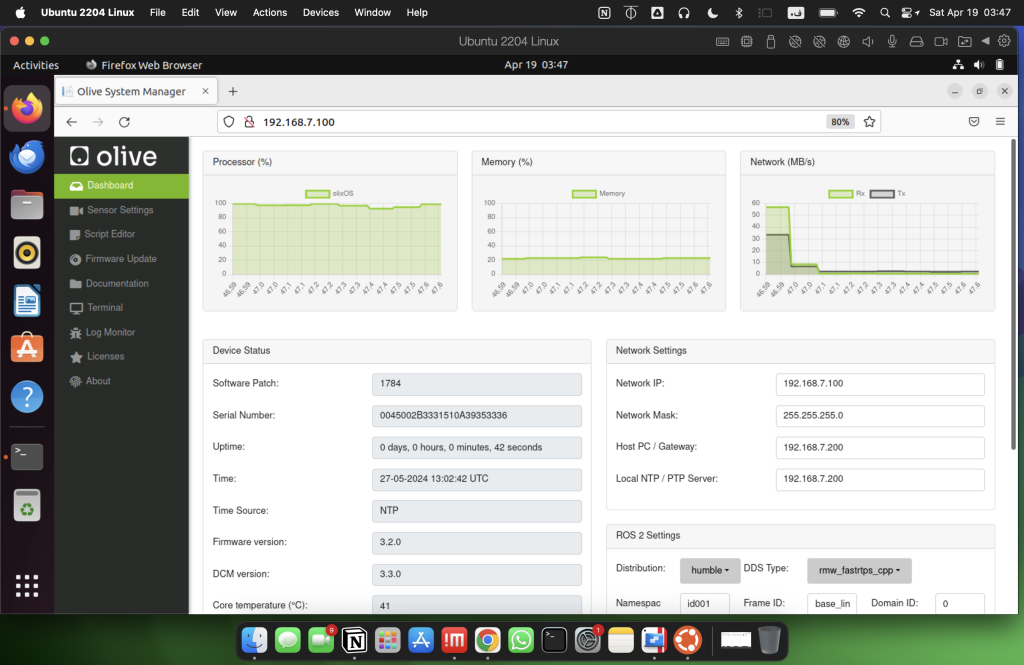
You can also open the GUI and see the dashboard or use the terminal to see the topics