olixBot™ Scara 1
Initial Setup
Overview
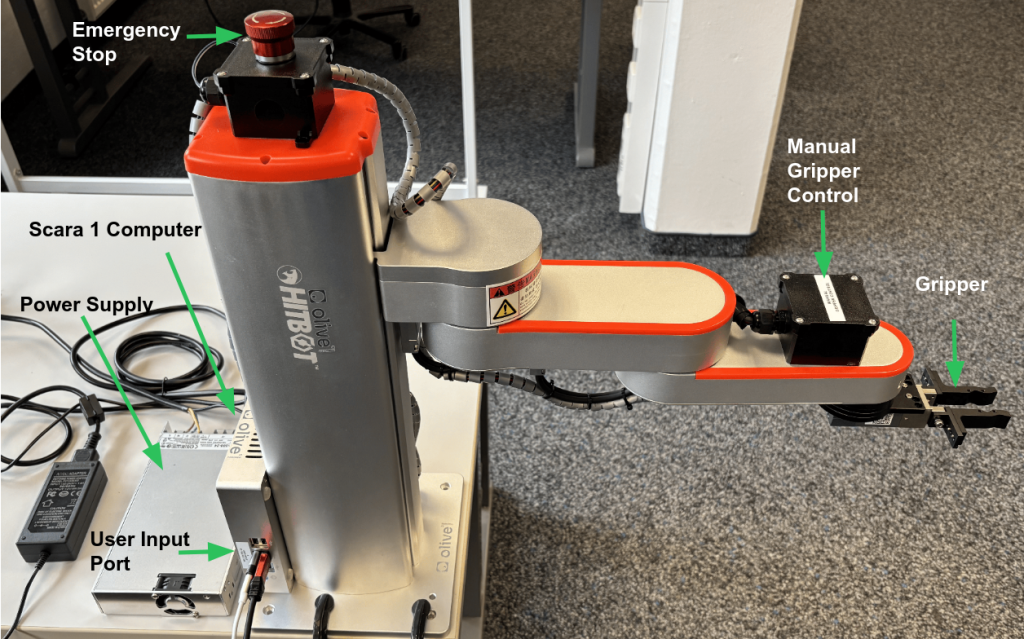
Power On
Setup
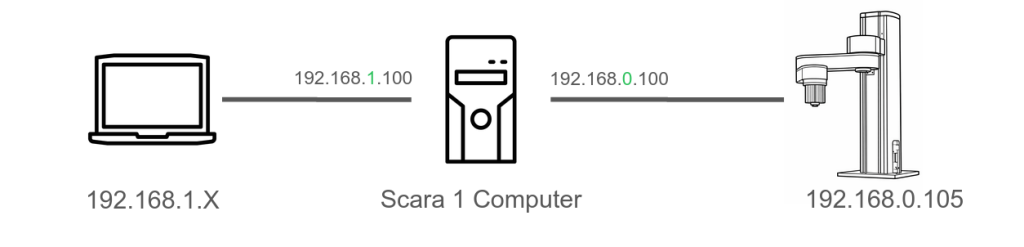
The robot always uses the fixed IP address 192.168.0.105.
The supplied Scara 1 computer has two network connections:
- One connected to the robot with IP 192.168.0.100
- One connected to the host system with IP 192.168.1.100 (Optional)
You can connect an additional computer via USB-to-Ethernet (the USB port is labeled on the Scara 1 computer). Configure this computer with a static IP address in the range 192.168.1.X (with X ≠ 100) and the subnet mask 255.255.255.0.
To control the robot via ROS 2 topics, services, or the Web UI, you can either use the the Scara 1 computer or use your own connected device.
The credentials for the Scara 1 Computer are: Username: olive, Password: one.
The following videos shows how to connect an additional Computer via USB-to-Ethernet. Please use the supplied USB-to-Ethernet Adapter otherwise you have to set the IP-Address again into the Scara 1 Computer.
Important: Everytime you change something on the network. If for example you connect an additional computer to the Scara 1 Computer or unplug it again. You have to restart the services via Web UI or the ./restart_scara_services.sh script in the scara 1 computer at the home directory. (See Troubleshooting for more information)
Robot Control
There are two different ways to control the Robot.
- Via Web-UI
- Via ROS 2 Service Calls
Web-UI
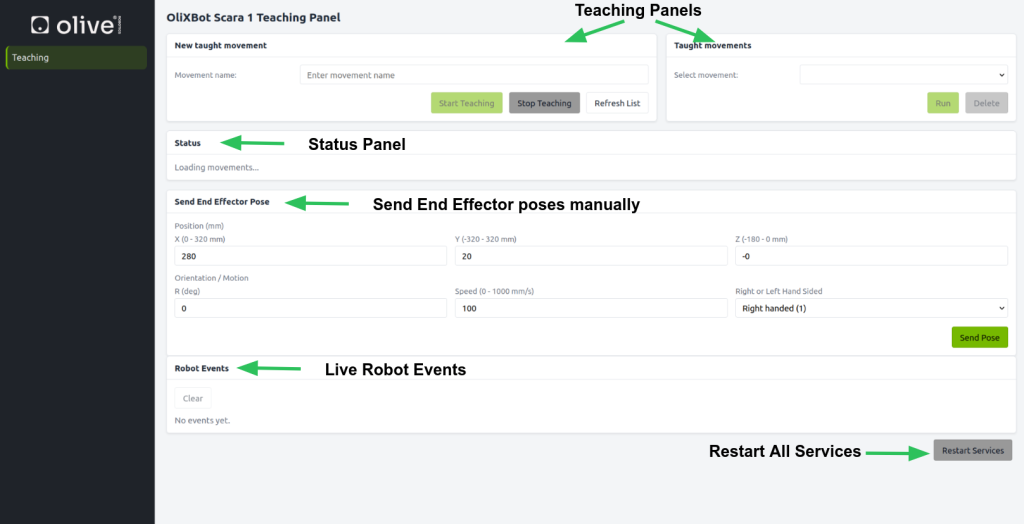
The Web-UI can be access by via IP 192.168.1.100 on Port 3000 or on the Scara 1 Computer with localhost:3000
ROS 2
To install the ROS 2 interfaces on your host system follow this link
General
Hint: The Scara 1 Computer runs on Cyclone DSS, to see the ros2 services and call them, please use also Cyclone DDS on your host system.
Since Cyclone DDS is sensitive when the network changes. Please stop the ros2 daemon first, change the network and then start the ros2 daemon again
# 1. Stop ros2 daemon
ros2 daemon stop
# 2. Change network settings
# 3. Start daemon again
ros2 daemon start
Topics
| Topic | Type | Description |
|---|---|---|
| /events | n1_interface/msg/RobotEvent | Shows Robot Events (e.g. Pose out of range) |
Services
| Service | Type | Description |
|---|---|---|
/start_teaching | n1_interface/srv/Teaching | Puts the robot into teaching mode |
| /stop_teaching | std_srvs/srv/Trigger | Exits teaching mode |
/run_teached_movement | n1_interface/srv/Teaching | Executes the teached sequence |
/delete_movement | n1_interface/srv/Teaching | Deletes a stored taught movement |
/list_all_teached_movements | n1_interface/srv/ListTaughtMovements | Lists all saved taught movements |
/open_gripper | std_srvs/srv/Trigger | Opens the robot gripper |
| /close_gripper | std_srvs/srv/Trigger | Closes the robot gripper |
/new_movej_angle | n1_interface/srv/NewMovejAngle | Creates a new joint-space movement using joint angles |
new_movej_xyz_lr | n1_interface/srv/NewMovejXYZ | Creates a new joint-space movement using Cartesian XYZ and left/right configuration |
Teaching
With the Teaching mode it is possible to teach the robot a grasping sequence and let the robot rerun it.
Hint: During the Teaching process you can go out of the Motion Range of the Robot, which can later case a problem, if you want to rerun the teached movement. During the Training you can monitor if you are out of the range either in the Web UI or in the ROS 2 topic /olive/olixBot/scara1/id_001/events.
You can start the Teaching mode via Web UI or via a specific ROS 2 Services:
Web-UI
ROS 2 Services
The teaching process via ROS 2 works the same like shown in the video above just using ROS 2 services.
To start a teaching process run following service:
ros2 service call /olive/olixBot/scara1/id_001/start_teaching n1_interface/srv/Teaching "name: 'teaching_1'"To Stop the teaching process run following service:
ros2 service call /olive/olixBot/scara1/id_001/stop_teaching std_srvs/srv/TriggerTo run the teached movement run following service:
ros2 service call /olive/olixBot/scara1/id_001/run_teached_movement n1_interface/srv/Teaching "name: 'teaching_1'"Error Codes
The error codes can be seen either by the events topic or in the Web UI
| Code | Description |
|---|---|
| 0 | The robot is executing other instructions, this instruction is invalid. |
| 1 | This instruction is valid, the robot starts moving. |
| 2 | Speed is set to zero or less |
| 3 | The robot is not initialized |
| 4 | The target point cannot be reached |
| 6 | Servo is not enabled |
| 7 | Unable to reach the target point with the specified hand orientation |
| 99 | Emergency stop |
| 101 | Invalid parameter, NOT A NUMBER |
| 102 | Collision occurred, this instruction is invalid |
| 103 | Axis reset occurred, reinitialization is needed, this instruction is invalid |
Trouble Shooting
Reboot
If the robot stops working or the emergency button has been pressed, the robot must be rebooted. However, the Scara 1 computer does not need to be restarted. In this case, it is sufficient to restart the services and reboot the robot.
The restart can be performed either via the Web UI or by running the script ./restart_scara_services.sh on the Scara 1 computer in the home directory.
This process will restart and reinitialize Scara 1.
Logging
If you want to see the output of the ROS 2 service which runs the whole Scara 1 logic you can do this in the Scara 1 Computer via following command
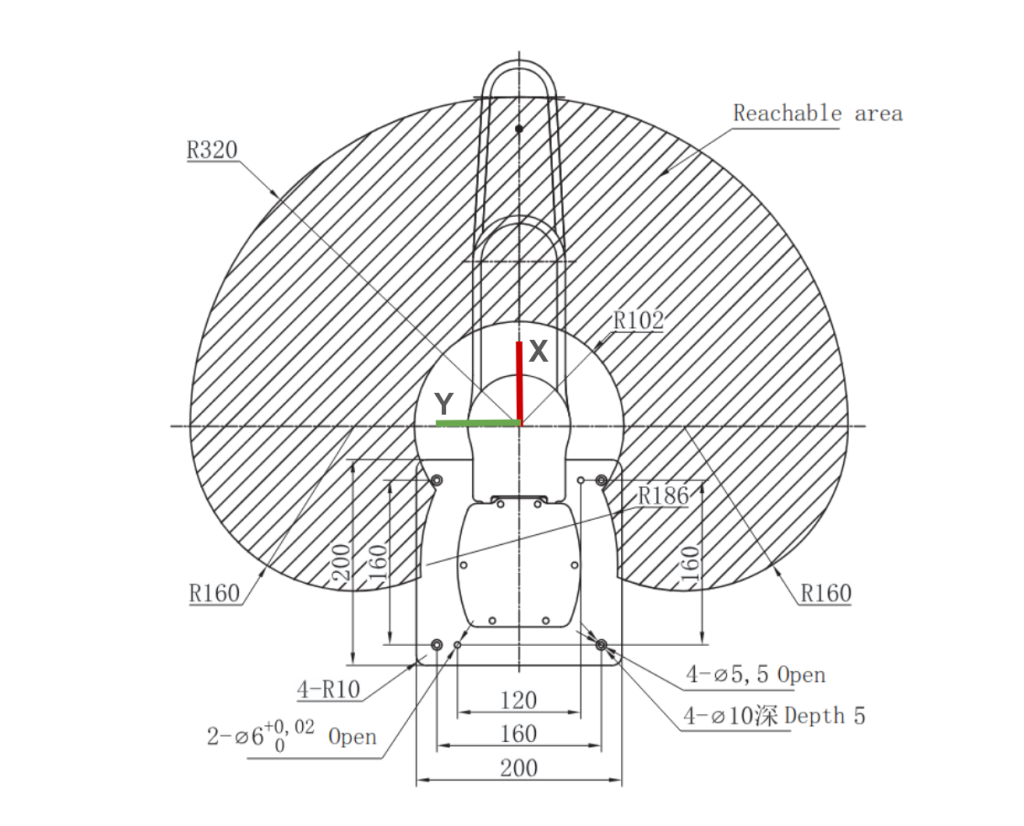
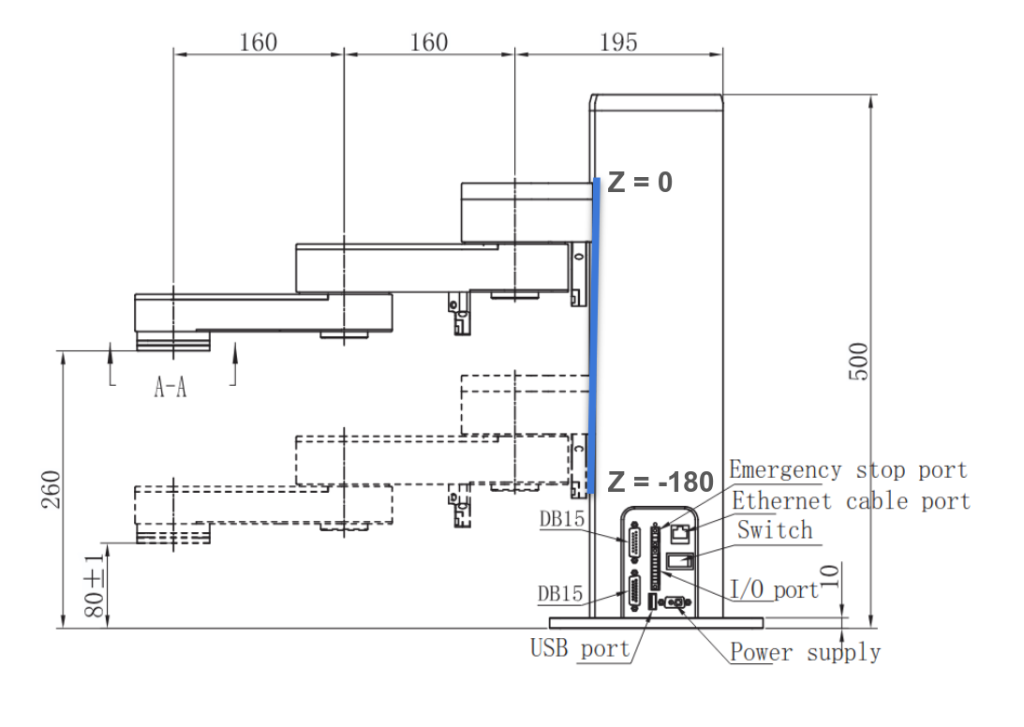
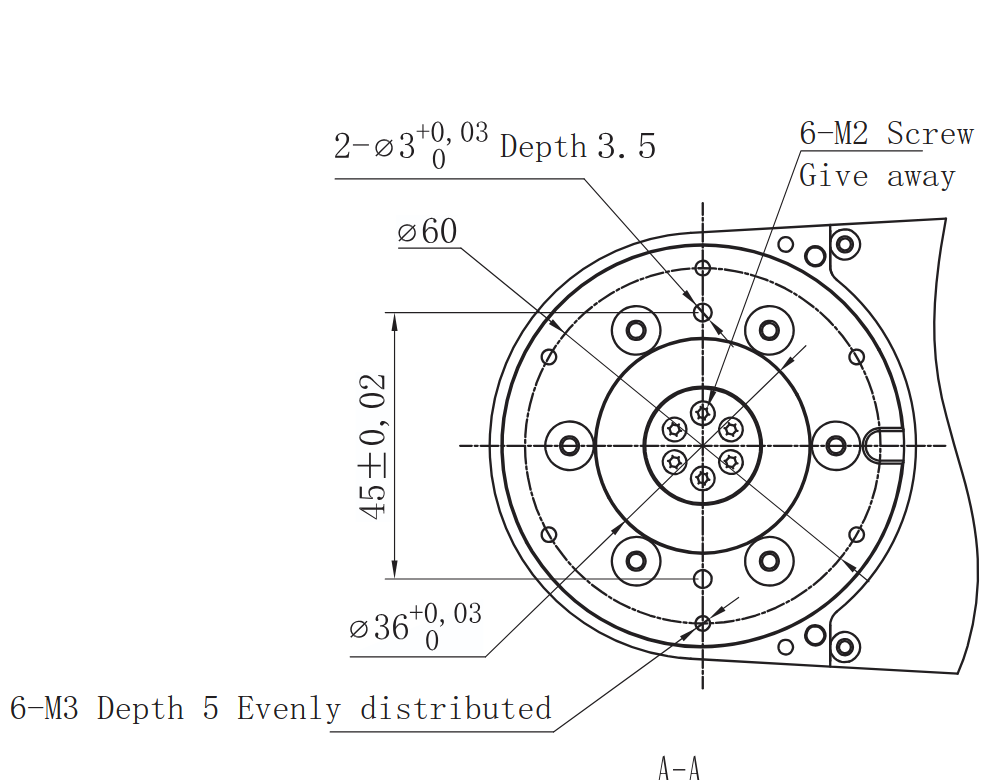
journalctl -u scara_ros.service -f Motion Range and Dimensions
| Parameter | Description |
|---|---|
| 1. Axis rotation angle | +- 90° |
| 2. axis rotation angle | +- 143° |
| R Axis Rotation Range | +-1080° |
| Linear Speed | 1017 mm/s (payload 0.5 kg) |
| Repeatability | +-0.02mm |
| Standard payload | 0.5 kg |
| Maximum payload | 1 kg |
| Degree of freedom | 4 |
| Z Axis height | 180mm |
Add Table of Dimenstions and max degrees etc.