Time Synchronization
Precision Time Protocol (PTP)
Due to limitations in the USB protocol, achieving PTP synchronization is not feasible with our current USB version of the products. PTP is supported in our Ethernet-based components with the code name ‘E’.
Please install linuxptp (> version 3.1.1) or any other ptp software that is standard and you are using in your robotic system or IT infrastrucutre.
Then run a service to expose the PTP master in your host computer. You can find the example systemd service to run in your host linux:
sudo apt install linuxptp[Unit]
Description=Olive Robotics PTP Master Example
After=network.target
[Service]
Type=simple
User=root
ExecStart=ptp4l -i eno1 -m -S
[Install]
WantedBy=multi-user.targetExample Command:
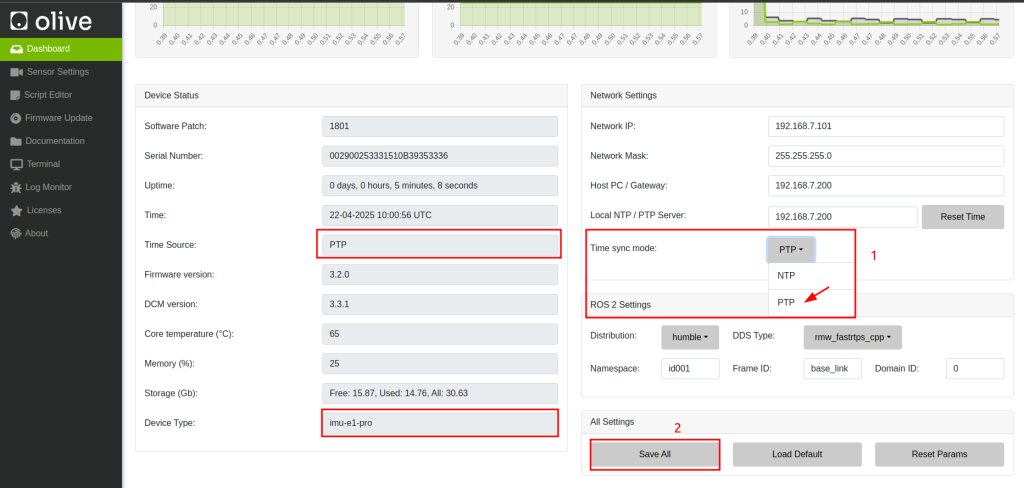
ptp4l -i eno1 -m -SIn Ethernet version of Olive Components the Time source option will be available in GUI which you can change NTP to PTP.
Network Time Protocol (NTP)
The Network Time Protocol (NTP) is a widely used protocol designed to synchronize the clocks of computers and devices over a network to a precise time reference. It ensures that all systems within a distributed infrastructure maintain accurate and consistent timekeeping, which is essential for time-sensitive operations, logging, event coordination, and security protocols. NTP typically operates in a client-server model, where clients adjust their clocks based on timestamps received from one or more servers. These servers can, in turn, synchronize with even more accurate sources, such as GPS or atomic clocks. NTP can compensate for variable network delays and is capable of maintaining time accuracy within milliseconds over the internet, and even better performance on local area networks.
Setting Up NTP Synchronization on Olive Components
Adding NTP Server IP:
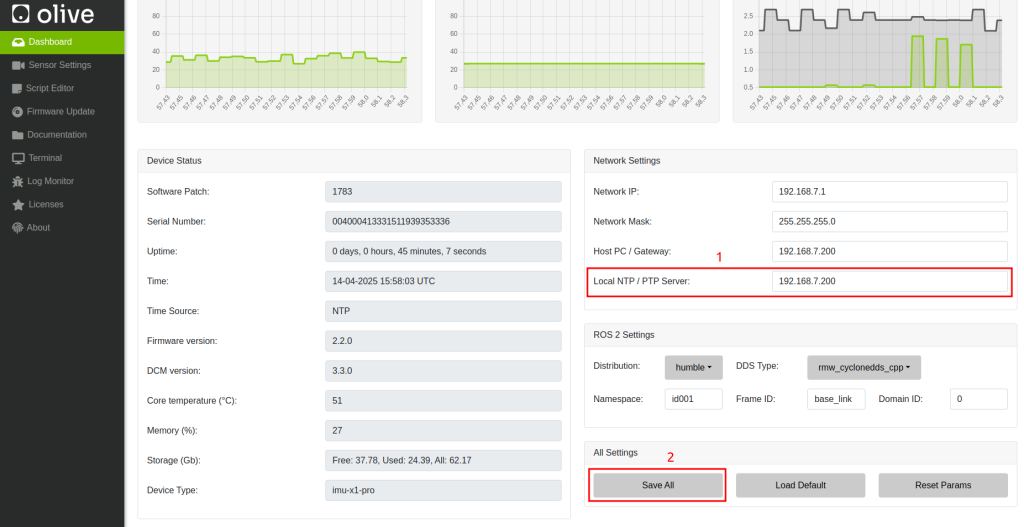
- Access the GUI: Log into your Olive component’s GUI.
- Configure NTP Settings: Find the network or time settings and enter the IP of your NTP server.
- Save and Reboot: Apply changes and reboot the component.
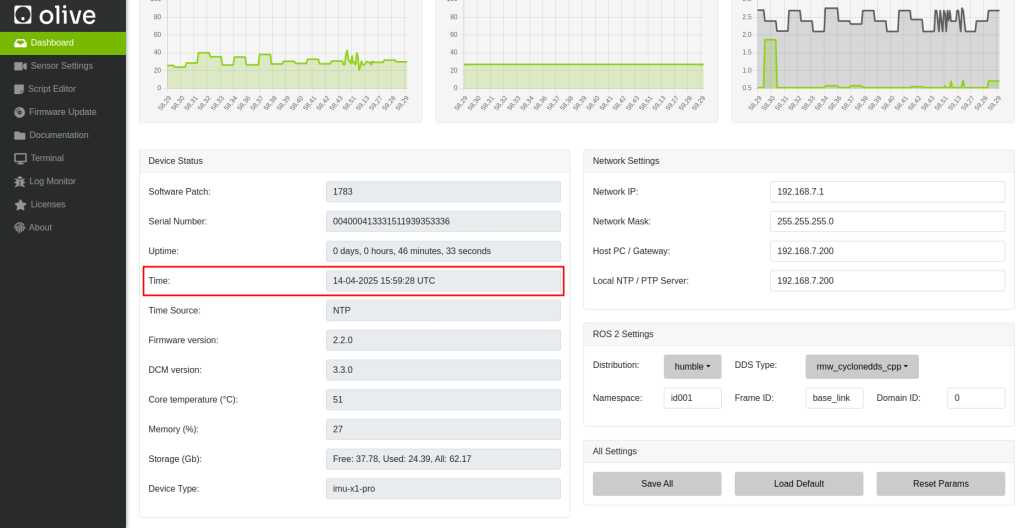
- Verify Time: Open the Olive GUI and check the time status
- Deep Verify (ssh in to Olive):
olive@robotics:~$ ntpq -p
     remote           refid      st t when poll reach   delay   offset  jitter
==============================================================================
*192.168.7.200   79.133.44.139    2 u   28  128  377    0.234   -1.082   0.266
Installing an NTP Server on Your Host Computer
For Linux:
- Install NTP: Run
sudo apt-get update && sudo apt-get install ntp. - Edit Config: Modify
/etc/ntp.confto add public NTP server entries. - Restart NTP: Execute
sudo systemctl restart ntp.
For Windows:
- Enable NTP Server: Go to
Internet Timesettings in the Control Panel, set up synchronization with a server from pool.ntp.org, and clickUpdate now.
Note: Ensure UDP port 123 is open in your firewall for NTP traffic.
That’s it! Your Olive system should now be synchronizing its time with the predefined NTP server.
