C1
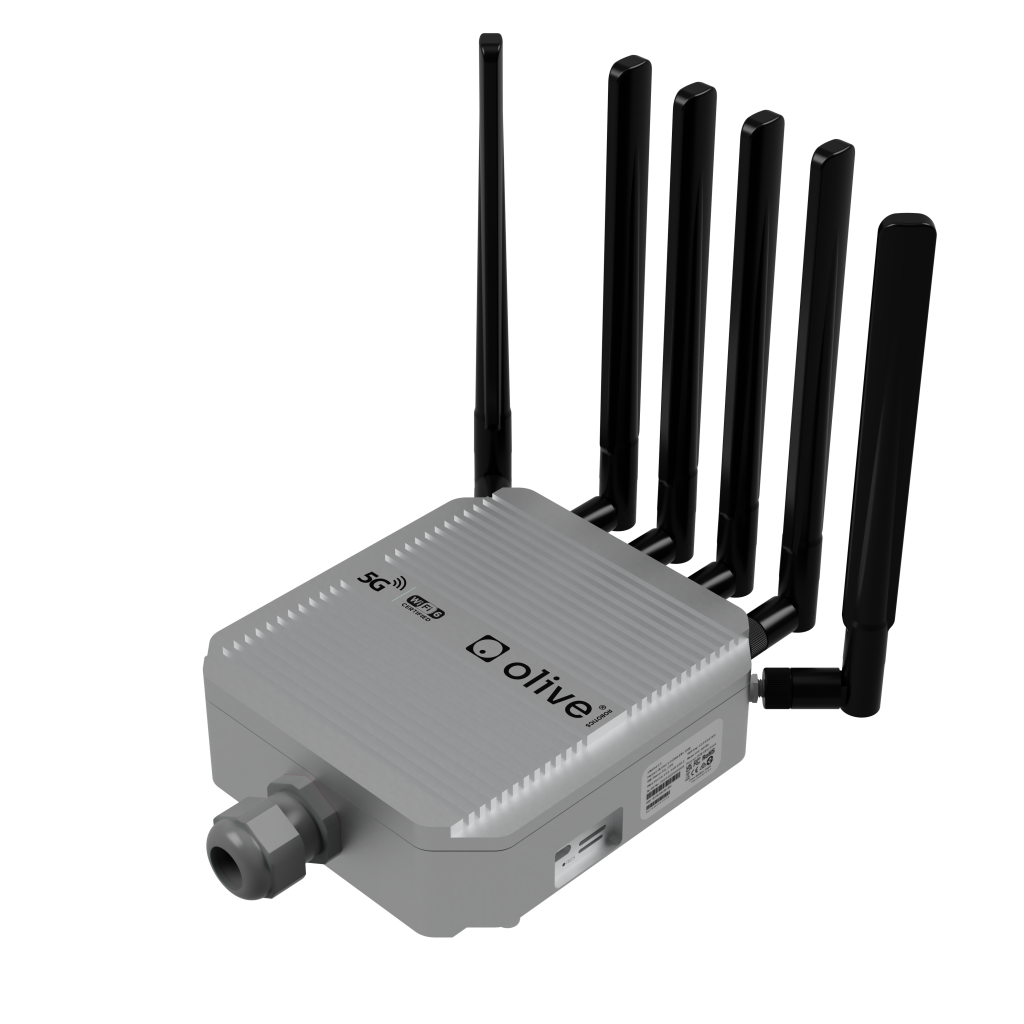
Description
Outdoor ready 5G router, armed with a six-antenna array for wide-range, full-coverage, gives your robot an encrypted VPN link for real-time control and support from anywhere. OlixLink™ C1 ensures your robot never loses connection, whether in a lab, factory, or outdoors. With global 5G NR SA/NSA support and dual SIM slots, it automatically switches networks to keep the link alive. Add Wi-Fi 6 dual-band performance, and you’ve got seamless coverage for both research and industrial environments.
Key Features
- Worldwide Remote Access via 5G VPN tunnel
- Real-Time Teleportation & Support
- Dual-SIM
- Zero-Effort Setup
- Highly Secure
- Flexible Connectivity
- Outdoor-Ready Durability
- ROS 2 native node to see the status of olixLink™ C1
Technical Specification
Physical and Electrical
| Feature | Description |
|---|---|
| Weight | 760g |
| Size | 135 mm x 140 mm x 45 mm |
| Power Consumption | Max. 30W |
| Operating Voltage | 48V/0.6A (POE+ Standard) |
| Operating Temperature | -10°C to 85°C |
WiFi
| Feature | Description |
|---|---|
| Version | WiFi 6 |
| WiFi Dual-Band | 2.4G and 2.8G connectivity |
| Speed | Up to 2400Mpbs (5.8G) and 600Mbps (2.4 G) |
| Compatibility | IEEE 802.11b/g/n/ AC / AX |
| Encryption | WPA2 |
Communication Interface / ODR
| Feature | Description |
|---|---|
| Interface Connector | Ethernet RJ45 / LAN |
| Communications Protocol | 2.5 Gbps (IEEE 802.3bz, 2.5GBASE‑T) |
| Middleware / Protocols (DDS) | – rmw_fastrtps_cpp – rmw_cyclonedds_cpp |
| ROS 2 Distribution | Humble |
Quick Start
Unboxing and Setup
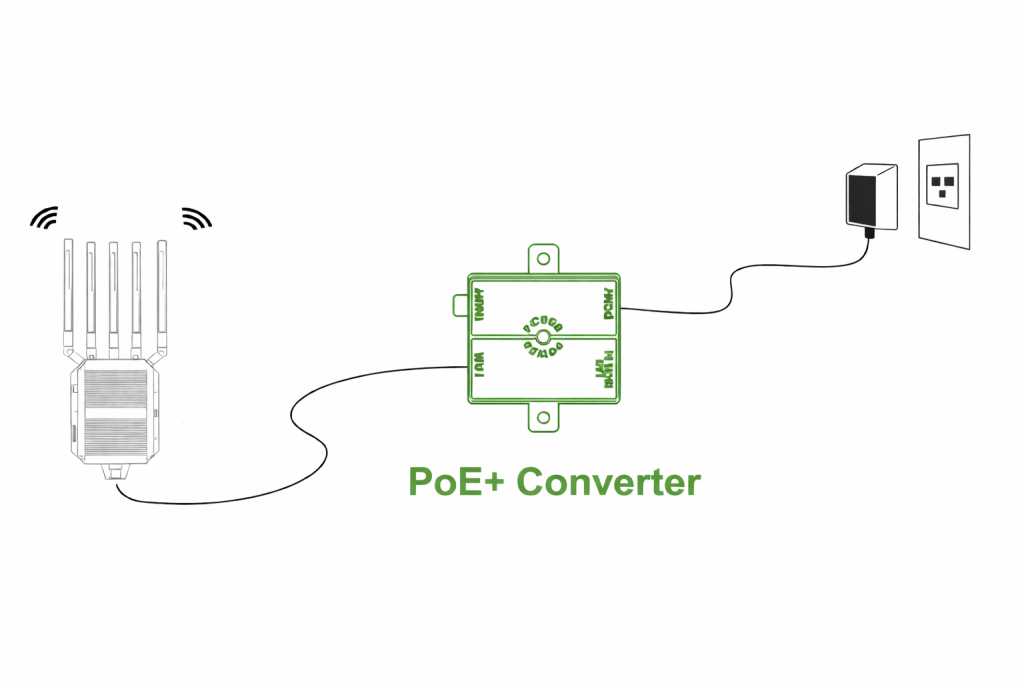
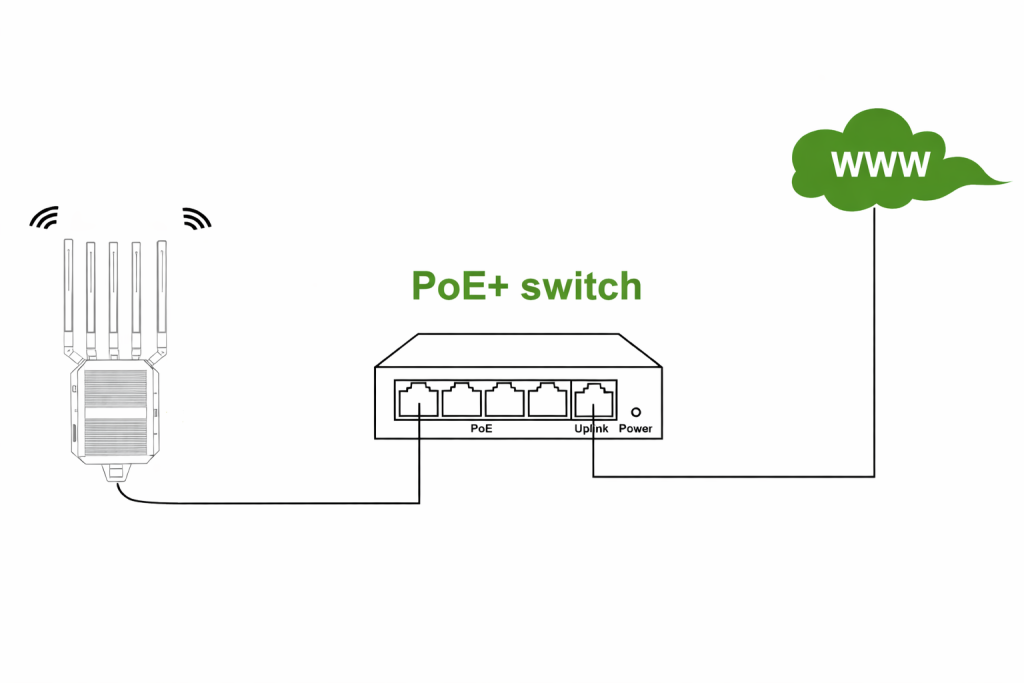
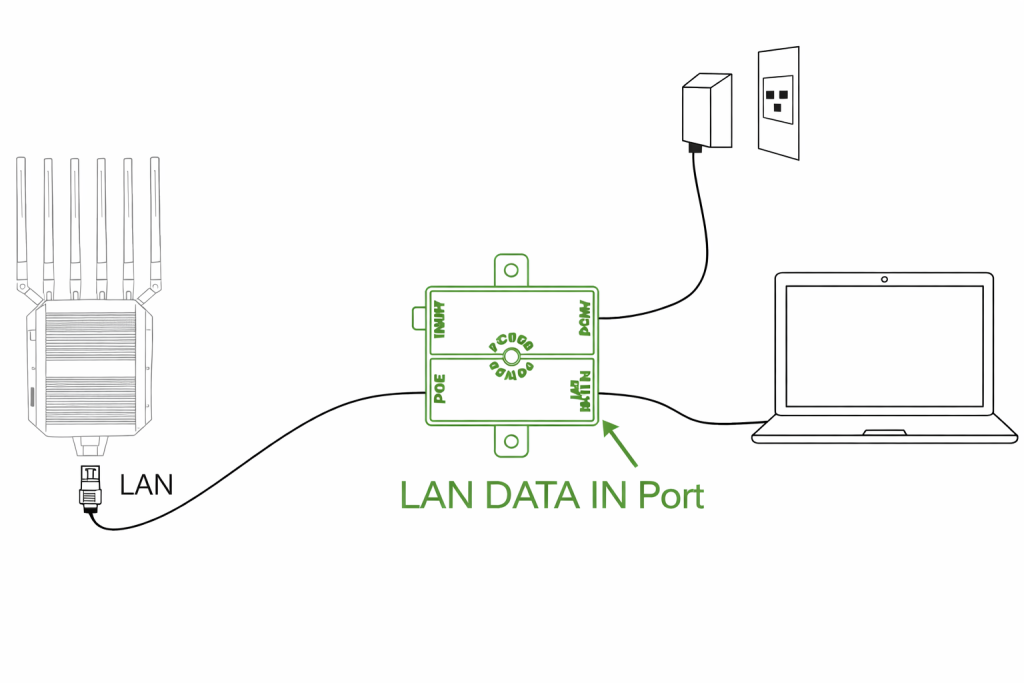
Power possibilities
Via POE+ Converter
Via POE+ Switch
Connection & Log In
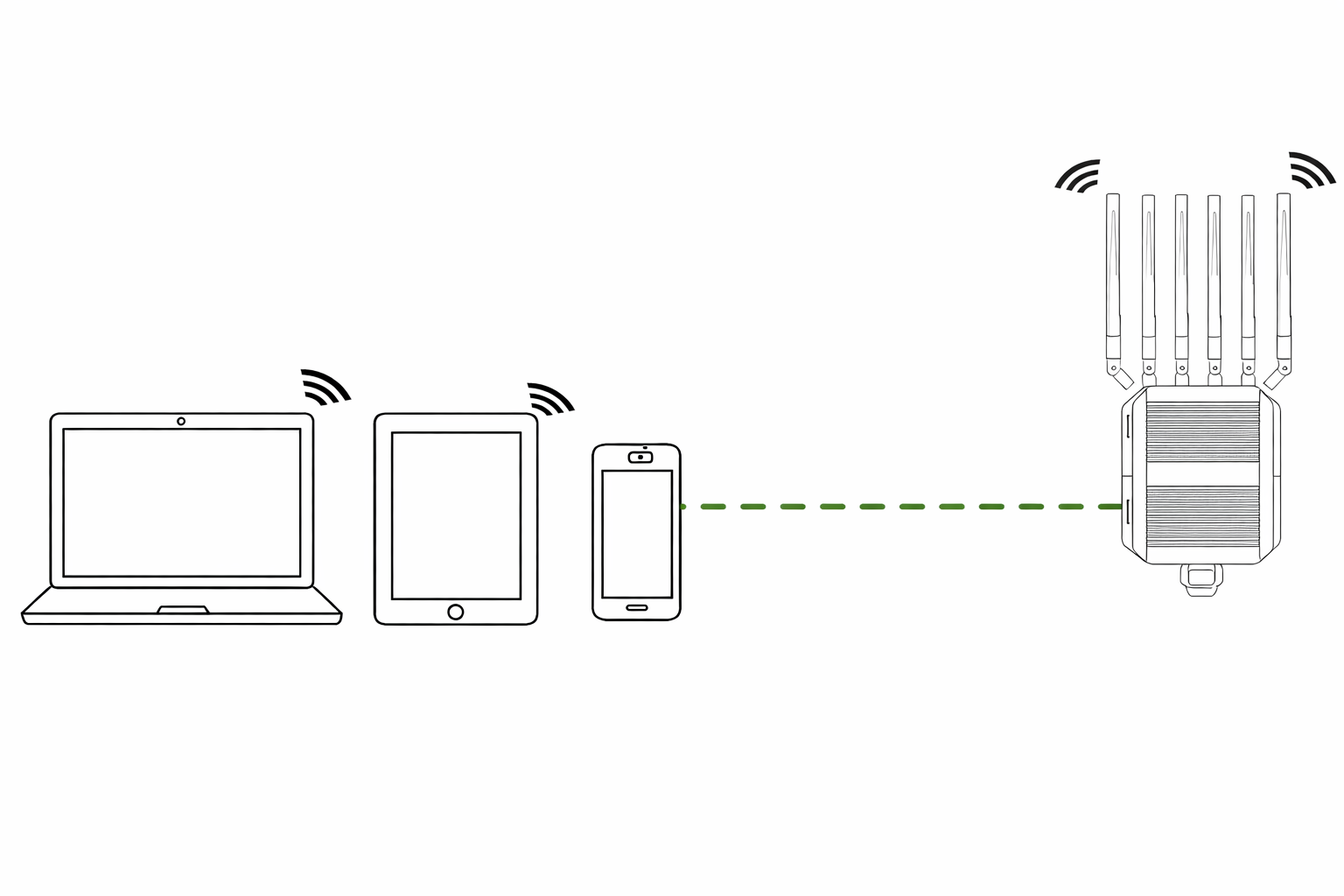
Connecting
Via Wi-Fi
Via Cable
- Go to Wi-Fi Settings
- Select the Wi-Fi with the SSID: 5G_CPE
- Enter the password: 123456789
Hint: The credentials are also available at the Label on the Router
Router Settings Access
To connect to the C1 and get access to the router settings please follow these steps:
- Connect to the Wi-Fi as described above
- Open a web browser
- Enter the IP address 192.168.100.1
- The Username is admin and the password admin
Sim Card
To add a SIM Card to the olixLink™ C1 follow these steps
- Insert your SIM card into one of the two SIM card slots on the olixLink™ C1.
- Connect your device to the olixLink™ C1.
- Open a web browser and navigate to: http://192.168.100.1
- When prompted, enter the SIM card PIN to unlock the card
- Log In to the Router Interface (username: admin, pw: admin)
- Go to 5G Network → 5G Info to check the SIM card’s connection status
- Check on the ROS2 Status Topic (/olive/olixLink/c1/id001/status) if SIM Card is up
- Open the CLI (Command Line Interface) and test connectivity
ping 8.8.8.8 - In the network settings, change the Network Latency Address to a reliable host (e.g., Google DNS:
8.8.8.8
LED Indicator
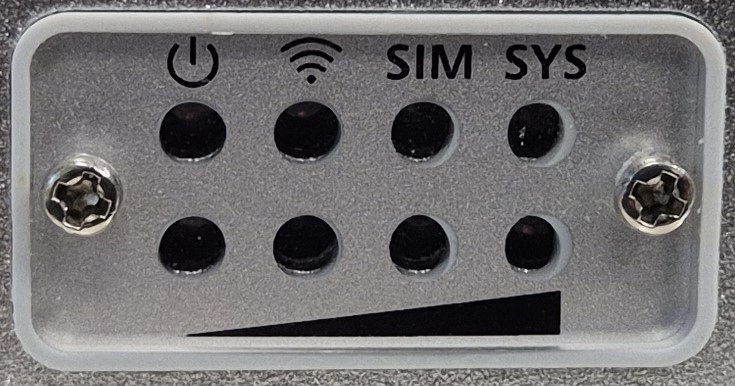
| LED | Status | Description |
|---|---|---|
| Power LED | ||
| Green | Stable green | Power on |
| Gray | Off | Power off |
| SIM card LED | ||
| Green | Stable green | SIM card is recognized |
| Gray | Off | SIM card not inserted nor recognized |
| RF LED | ||
| Green | Stable Green (From 1 to 4 LEDs) | Shows 5G signal strength (1(poor) until 4(really strong) ) |
| Gray | Off | Signal not available |
| System LED | ||
| Green | Flashing green | System running |
| Gray | Off | System not running |
| WiFi LED | ||
| Green | Stable green | WiFi is working |
| Gray | Off | WiFi not started |
ROS 2 and DDS Integration
General
The OlixLink™ C1 device provides its own ROS 2 node that publishes a status topic to report the current state of the unit. Once the connection to the router is established, the node publishes to the topic: /olive/olixLink/c1/id001/status with the message type diagnostic_msgs/msg/DiagnosticArray
This node is natively integrated with Eclipse Cyclone DDS, but the status topic remains discoverable and accessible even if the host system is using a different DDS implementation.
Since by default the LAN is selected by cyclone as primary ROS 2 network. You will mostlikely not see the status topic. But you can change the interface by a config. Following config is an example config to select right network
<?xml version="1.0" encoding="UTF-8" ?>
<CycloneDDS xmlns="https://cdds.io/config"
            xmlns:xsi="http://www.w3.org/2001/XMLSchema-instance"
            xsi:schemaLocation="https://cdds.io/config https://raw.githubusercontent.com/eclipse-cyclonedds/cyclonedds/master/etc/cyclonedds.xsd">
    <Domain Id="any">
        <General>
            <Interfaces>
                 <!-- Please select your interface name which is connected
                      with the OlixLink C1 -->
                <NetworkInterface name="wlp8s0"/>
            </Interfaces>
            <AllowMulticast>true</AllowMulticast>
        </General>
    </Domain>
</CycloneDDS>
Then set the configs
ros2 daemon stop
export CYCLONEDDS_URI=file:///path/to/cyclone_c1.xml
ros2 daemon start
The Status message contains following information:
WiFi 5G and WiFi 2.4G Status
| Value | Description |
|---|---|
| ESSID | The WiFi name |
| Frequency | The frequency of the WiFi |
| Signal level | How good is the signal of the WiFi in dBm |
| Received data | Received data in bytes per second |
| Transmitted data | Received data in bytes per second |
Memory Status
| Value | Description |
|---|---|
| Total Memory | Total memory in kB |
| Used memory | Used memory in kB |
| Remaining memory | free memory in kB |
Sim Card Status
| Value | Description |
|---|---|
| Status | Sim Card is available or not, Values: UP | DOWN |
| Received data | Received data in bytes per second |
| Transmitted data | Received data in bytes per second |
Network Latency
An IP address can be configured through the ROS 2 parameters. Once set, the OlixLink™ C1 status node will periodically measure and report the latency between the device and the specified IP address, providing valuable network performance insights as part of its diagnostic data.
| Value | Description |
|---|---|
| IP Address | Shows the chosen IP address |
| Latency | Latency in ms |
ROS 2 Configurations
The ROS 2 Configuration can be changed via Web GUI.
- Connect your device to the olixLink™ C1
- Open a web browser and navigate to: http://192.168.100.1
- Log In to the Router Interface (username: admin, pw: admin)
- In the sidebar, click on ROS 2 Settings. (if not available press F5)
- On the Web GUI now you can change the ROS 2 Domain ID, the topic namespace, the latency address and select an ntp/ptp server
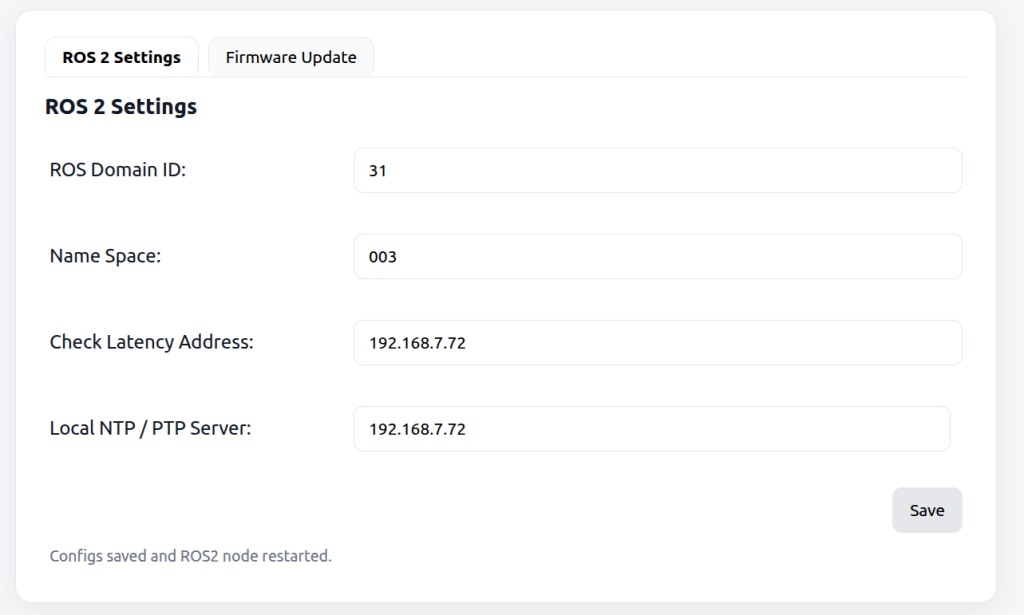
Here is a more detailed description of those parameters
| Value | Description |
|---|---|
| ROS Domain ID | Change the ROS domain ID of the router |
| Name Space | Change the Name Space of the C1 status topic |
| Check Latency Address | Add an IP address to check the latency |
| Local NTP / PTP Server | Add IP address of an ntp server to sync the C1 time with your host system time |
Firmware Update
To update the firmware of the olixLink™ C1 follow these steps:
- Connect your device to the olixLink™ C1
- Open a web browser and navigate to: http://192.168.100.1
- Log In to the Router Interface (username: admin, pw: admin)
- In the sidebar, click on ROS 2 Settings. (if not available press F5)
- Switch to the Firmware Update tab
- Upload our released olixLink™ C1 firmware
- Wait until upload is finished
- Restart the router
Web Interface
In this section, the individual tabs of the web interface are explained.
